Quix Lake connections and storages
Connect your cluster to a bucket or container so Quix can enable Quix Lake, the Data Lake, the Lakehouse, or any other managed service that needs storage. One connection can then hold several storages. Your clients address one bucket, and each storage is a folder inside it.
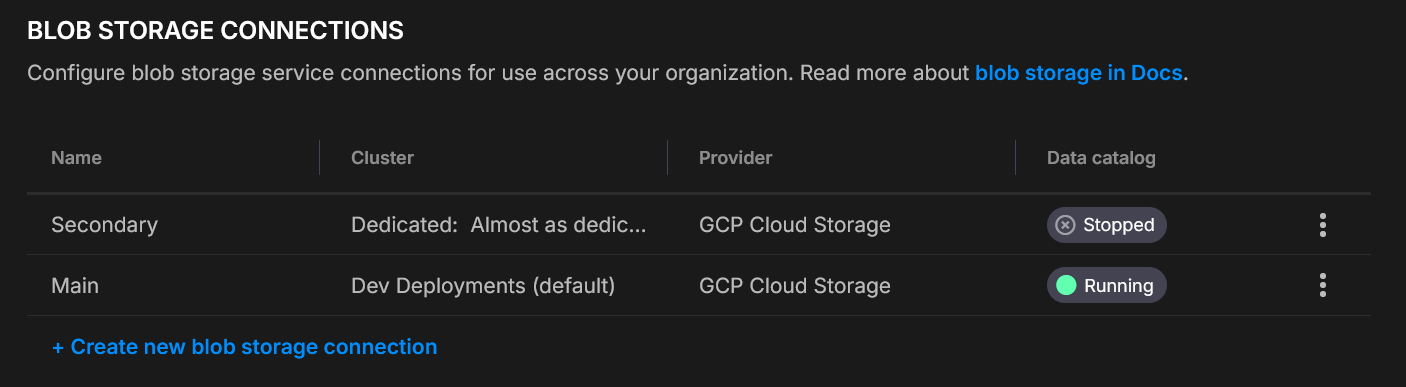
One bucket, one root
One connection holds one Quix Lake bucket. Every storage on the connection is a folder in that bucket.
Only the main storage may sit at the root of the bucket. A storage that is not the main storage always has a folder.
The main storage may take a folder of its own too. A listing of the bucket root then shows only folders. A key whose first segment names no storage still reaches the main storage.
One connection per cluster and node group
Each cluster and node group pair supports one Quix Lake connection. The Portal names a connection by that pair. You can configure different connections for different pairs. One connection still holds as many storages as you need, so a second storage needs no second connection. Both the Data Lake Sink and the Lakehouse Sink use this same connection.
One shared connection doesn't mean one shared view of the data: each team only sees its own data, and the bucket's keys stay locked away. See the Storage permissions.
Quix Lake at a glance
Quix Lake is the persistence layer of Quix Cloud. It ships in two flavors that share this connection:
- Data Lake — raw Kafka messages in Avro plus a Parquet index. Replay-first, byte-perfect.
- Lakehouse — columnar Parquet tables registered in a catalog. Query-first, SQL-ready.
Run one, the other, or both — see the Quix Lake overview for how to choose.
Create a connection
- Open Settings → Quix Lake. The page shows one row for each cluster and node group.
- Click the row of a cluster that shows Not connected. The Connect storage panel opens, with the Cluster filled in.
- Type the Quix Lake bucket.
- Choose the Provider. Fill in the Provider bucket and the credentials. See Get provider credentials.
- Click Test connection, described below.
- Click Create.
The page lists every cluster and node group in your organization. A cluster without a connection shows a Not connected badge, so you can see at a glance where Quix Lake is still to set up.
You type the Quix Lake bucket name yourself. It is the one bucket name your code uses, and it is separate from the Provider bucket. The first storage becomes the main storage of the connection. It sits at the root of the Quix Lake bucket, unless you fill in Folder (optional). A storage you add later never moves it, because a new storage becomes a folder inside that same bucket.
An administrator can change these facts later:
- Rename the Quix Lake bucket. Open the connection and click the edit button on the Quix Lake bucket line.
- Rename a storage. A storage rename always moves the folder of one storage.
- Make another storage the main storage. This move moves a folder only when the storage that steps down sits at the root. That storage must then take a folder.
Get provider credentials
- Log in to the AWS Management Console.
- Go to IAM.
- Open Users.
- Select an existing user or click Add user to create a new one.
- Permissions
- In the Permissions tab, attach a policy that allows bucket access.
- Security credentials
- Open the Security credentials tab.
- Click Create access key.
- Save credentials
- Copy the Access Key ID and Secret Access Key. The secret appears only once.
- Copy the information into the Quix S3 form.
- Click Test connection.
- Ensure access
- Have Google Cloud project owner or similar permissions where your bucket resides or will be created.
- Create a service account and assign it to the bucket with read and write rights, such as
roles/storage.objectAdmin, or equivalent minimal object roles. - Open Cloud Storage settings
- In the Google Cloud Console, go to Storage → Settings.
- Interoperability tab
- Select Interoperability.
- If disabled, click Enable S3 interoperability.
- Create (or view) keys
- Under Access keys for service accounts, click Create key and follow the process to assign one to the service account.
- Save credentials
- Copy the Access key and Secret. The secret is shown only once.
- Paste this information into the Quix S3 connector form.
- Click Test connection.
- Ensure access
- Your Azure user must have at least the Storage Blob Data Contributor role, or higher.
- Open the Azure Portal and go to your Storage account.
- Navigate to credentials
- In the left menu, expand Security + networking.
- Click Access keys.
- Copy credentials
- Note the Storage account name.
- Copy Key1 or Key2.
- Paste the information into the Quix Azure Blob connector form.
- Click Test connection.
- Ensure access
- Your MinIO user or role must include permissions to create and list access keys, such as
consoleAdminor a custom PBAC policy. - Log in to the MinIO Console.
- Go to Access keys
- Select Access keys in the left menu.
- Create a new key
- Click Create access key to generate an Access Key and Secret Key.
- Save credentials
- Copy the Access Key and Secret Key. The secret is shown only once.
- Copy the information into the Quix MinIO connector form.
- Click Test connection.
Test before saving
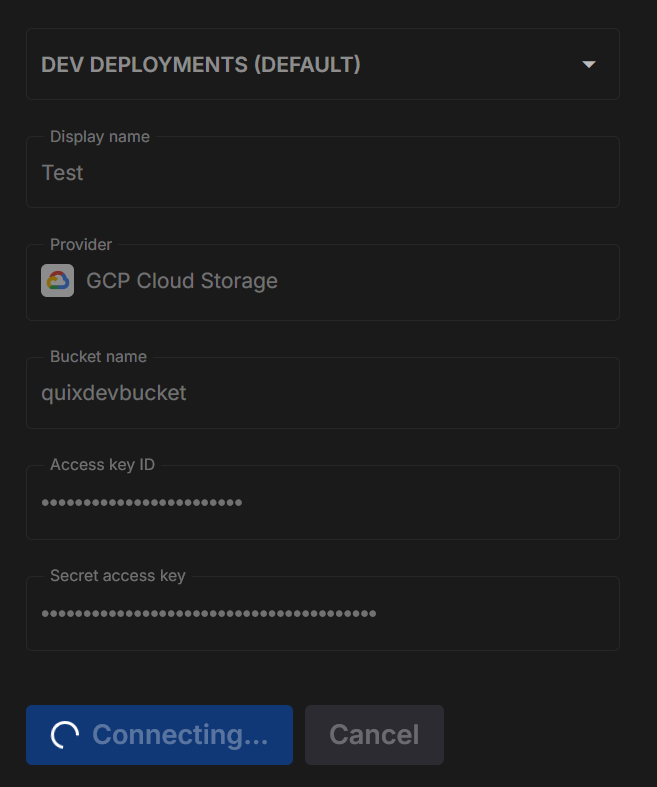
When you click Test connection, Quix runs a short round-trip check to confirm your details are correct and that the platform can both see and use your storage. The check does four steps on a small test file in your bucket: write, list, read, delete.
When the test passes, the panel shows Tested connection with a tick.
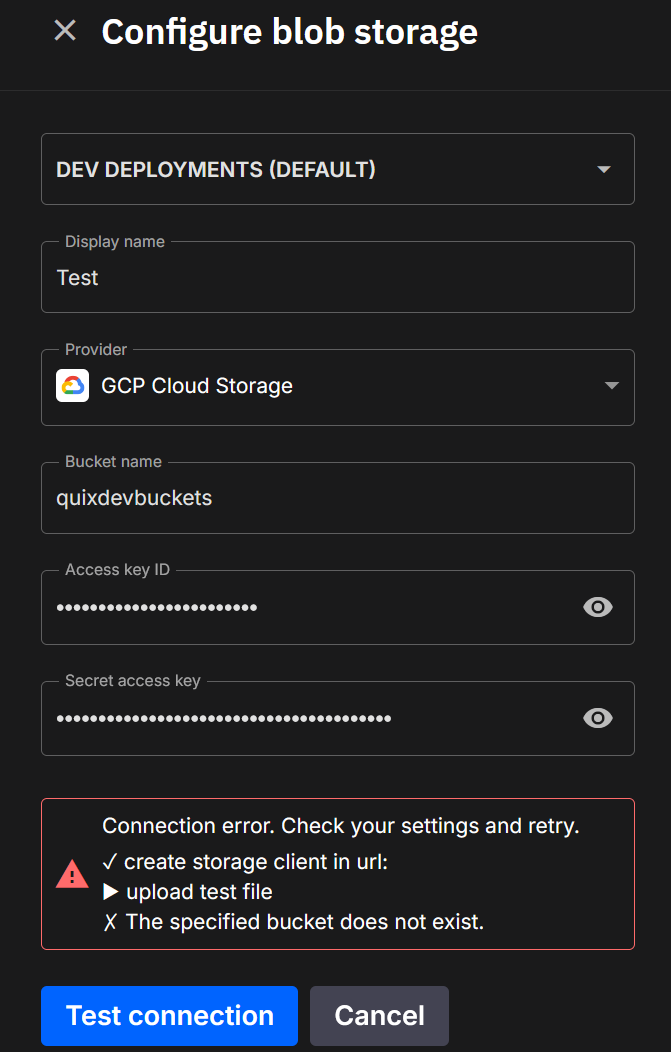
When the test fails, the panel shows "Connection error. Check your settings and retry." and lists the steps with the reason. Use the reason to fix the permissions or correct your settings.
Edit a connection
Open the connection from Settings → Quix Lake. On the Storages tab, click the main storage row, or select Edit storage in its ⋮ menu.
The Access key ID and the Secret access key are optional when you edit. Leave both empty and Quix keeps the keys it already holds. Fill them in only when you rotate the credentials.
Quix asks you to test again only when you change a field that reaches the storage, such as the endpoint, the bucket, or the credentials. A change to the Name saves at once.
Add a storage
A cluster still holds one connection, but that connection can serve more than one storage. Your clients keep addressing one bucket, the Quix Lake bucket, and each storage is a folder inside it. The Folder you set on a storage is that folder name. So a client reaches a second storage by putting the folder first in the key, on the same endpoint and with the same credential:
Each storage keeps its own bucket or container and its own credentials. One bucket name in your code can therefore hide several providers. Add a storage when you want data in a different bucket, region, or provider, and give your services no second connection to manage.
A storage can also serve folders on a machine you own, such as a local disk or a network share. See Bridge (beta).
To add one:
- Open Settings → Quix Lake and select the connection.
- Open the Storages tab.
- Click Add storage.
- Choose the Provider. Fill in the Provider bucket and the credentials.
- Set the Folder.
- Click Test connection, then Create. A bridge storage has no connection to test, so this step goes straight to Create.
A cloud storage takes the name of its provider bucket. You can change the Name later in Edit storage. A bridge storage also asks for a Name.
The Storages tab lists every storage on the connection. Each row shows the Folder your clients use and the Provider bucket behind it. The main storage carries a Main badge. The ⋮ menu holds Edit storage. On a storage that is not the main storage, it also holds Make this the main storage and Delete storage.
A new storage never moves an old one
A storage you add changes nothing about the storages that are already there. The Quix Lake bucket keeps its name, and every path to it keeps working. A customer with one storage sees no change at all.
Folder name rules
The folder name sits at the root of the Quix Lake bucket, and Quix applies the bucket rules to it:
- It is 3 to 63 characters long.
- It starts and ends with a lowercase letter or a digit.
- It holds only lowercase letters, digits, and
-. - It is unique on the connection. Two storages cannot share one folder.
- It cannot start with your organization ID and a hyphen. Every environment ID starts that way, and the environment shortcut needs that shape.
- It cannot be your organization ID, and it cannot be the name of the Quix Lake bucket.
- It cannot be
admin,explorer,internal,healthormetrics.
Quix also refuses a name when a folder of that name already exists in the main storage. The new storage would hide that folder. Pick another name, or move the folder first.
The Folder column on the Storages tab shows where the storage sits in the Quix Lake bucket, as a path. It shows / for a storage at the bucket root, and /archive/ for a storage in the folder archive. Only the main storage can show /.
Rename a storage
Open Edit storage from the ⋮ menu on the Storages tab and change the Folder field. The Name is a label for the Portal only, so a change to it moves nothing.
You cannot empty the Folder field of a storage that is not the main storage. Only the main storage may sit at the bucket root.
A rename moves the folder every client uses
The folder is the address of the storage. So a rename moves the whole storage to another folder of the Quix Lake bucket. The old folder stops working at once. There is no alias and no grace period.
s3://quixdevbucket/minio/reports/day.csv      before the rename
s3://quixdevbucket/archive/reports/day.csv    after a rename to archive
Quix moves the permissions of the storage with it, so nobody loses access. Quix also restarts the deployments bound to the storage. Your code still needs a change, because the folder in its keys changes. Update your code, your saved paths, and your sink configuration before you rename. A multipart upload that uses the old folder fails after the rename. The Portal shows a warning before it saves the rename.
A path change can break Lakehouse tables
A Lakehouse table stores the full path of its files. A rename or a main storage move can change the path of a storage that holds Lakehouse tables. Those tables then stop working until the Lakehouse catalog updates its stored paths.
Make a storage the main storage
Any storage on the connection can become the main storage. Open the ⋮ menu on the Storages tab and click Make this the main storage.
Only the main storage may sit at the root of the Quix Lake bucket, so the storage that steps down must leave the root. The dialog has two steps when the current main storage sits at the root:
- Name a folder for the current main storage. The folder name rules apply.
- Confirm. The Portal shows what changes and asks you to type a word to confirm.
Quix changes nothing until you finish both steps. When the current main storage already has a folder, the dialog asks for no folder name, and no address changes.
The move changes these things:
- The promoted storage keeps its folder and takes the Main badge. No running client of that storage breaks.
-
The storage that steps down moves, if it sat at the root. It answers under the folder you named from that moment:
s3://quixdevbucket/reports/day.csv            before the move, at the bucket root
s3://quixdevbucket/principal/reports/day.csv  after the move, in the folder principal
Quix moves its permissions into the new folder. Update your own code, your saved paths, and your sink configuration.
-
Environment deployments follow the main storage. Quix moves every environment deployment of the old main storage to the new main storage. Then Quix restarts the deployments of both storages and the dev sessions. Each restarted deployment gets a new credential.
-
The environment shortcut moves.
s3://<workspaceId>/reaches the promoted storage from that moment. See The environment shortcut. - The Quix Lake bucket keeps its name. The bucket belongs to the connection, not to the main storage.
- Your services stay where their data is. The Data Lake and the Lakehouse keep the storage that holds their tables. Deployments and sinks get the Lakehouse variables only from a Lakehouse on the new main storage. When no Lakehouse runs on the new main storage, they get no Lakehouse variables.
- A promote never clears a folder. An administrator can still put the main storage back at the bucket root. To do so, empty its Folder field in Edit storage.
Quix copies no data. A read of s3://<workspaceId>/ answers empty until you copy the environment folders into the new main storage yourself.
A bridge storage needs a bucket root first
The Portal refuses Make this the main storage on a bridge storage until the bridge has a bucket root. Set the bucket root in the bridge console first. See The bucket root.
Checklist: copy the data before you rely on the new main storage
A main storage move is a two-part job. Quix only does the first part. Before you move the main storage:
- Announce the change and stop writes.
- Copy every environment folder from the old main storage to the new one. Check the file counts and the byte totals.
- Pick the folder name for the current main storage, if it sits at the root. Tell every team that reads that storage.
- Move the main storage in the Portal.
- Read, write, and list through
s3://<workspaceId>/to confirm the new main storage answers. - Read the storage that stepped down through its new folder to confirm it answers.
- Keep the old storage on the connection until every check passes.
To go back, make the old storage the main storage again:
- The Main badge and the environment shortcut move back.
- The environment deployments move back too, and Quix restarts them again.
- The folder stays. That storage stays in the folder you named.
The environment shortcut
s3://<workspaceId>/ is a short address for the environment folder in the main storage. It always follows the main storage. See The environment shortcut.
Delete a storage
Open Delete storage from the ⋮ menu on the Storages tab.
- Quix refuses the delete while a deployment uses the storage, and while the storage is the main storage and other storages remain.
- A Data Lake does not block the delete: Quix deletes the Data Lake with the storage.
- When a credential still uses the storage, the Portal asks Delete it anyway?. That delete revokes the credential, and every service that holds it gets an access error until you redeploy it.
Deleting a storage removes it from the connection. Your data stays in your own bucket.
Bind a storage to a deployment
A deployment or a dev session binds the main storage of the connection. Quix injects the connection as a secret variable. See Quix Lake storage for the variables and how to read them in Python.
Security and operations
- Use a dedicated principal per storage — an IAM user, a service account, or a MinIO user.
- Scope each credential to one bucket or container.
- Rotate keys regularly and store secrets securely.
- Consider server-side encryption and access logging.
Next steps
- File Explorer — browse and manage files in the Portal
- Storage permissions — who can read and change what
- How to connect — reach the same data from your code
- Bridge — serve folders on your own machine as a storage
- Data Lake Sink — persist topics as Avro plus a Parquet index
- Lakehouse Sink — persist topics as queryable Parquet tables
.png)